How a sale works with Clover
Ozync's checkout runs in the browser at your front desk, on a computer or an iPad. Clover runs its Cloud Pay Display app on the device the client faces.
- 1The client checks in on the kiosk or arrives for a booking, and waits in the queue.
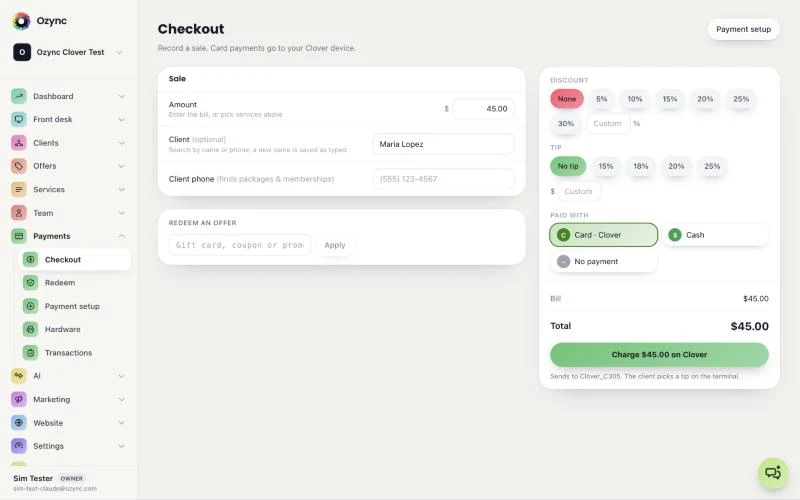
- 2When the service is done, open checkout from their row. Their services and prices are already on the bill; add a discount or a gift card if you need to.
- 3Press Charge on Clover. The amount goes to the Clover device over Clover's cloud; there is nothing to pair.
- 4The client picks a tip on the Clover screen and taps, inserts or swipes their card.
- 5The sale, the tip, the card and the staff member land in Ozync's Transactions, and the money settles in your Clover account.
Which Clover devices work
Clover sends sales from other apps to its Flex, Mini and Compact, which run Clover's Cloud Pay Display app. Clover Station and Station Duo cannot take a sale sent from another app; they keep ringing up sales in Clover's own register, and those sales still show on Ozync's Clover sales page.
A shop can mix both: a Mini at the front desk for Ozync checkouts, and the Station where it has always been.
Refunds go back to the card
Refund a Clover sale from Ozync's Transactions and the money goes back to the client's card through Clover. Choose a full refund, a refund without the tip so the stylist keeps it, or any partial amount. Every refund is recorded with who did it and when.
Every Clover sale in one place, with a summary
The Clover sales page reads the payments on your Clover account, including sales rung up on the Clover register that never went through Ozync. You see sales, tips, refunds and card types by day, with a short written summary on top: how the day went, the tip rate, and anything worth a look.
Each payment is matched to Ozync. A sale that is on Clover but not in Ozync is marked, so the day's numbers in Ozync and in Clover agree, and nothing taken at the register goes missing from your reports.
- Today, 7 days, 30 days or any range up to a month.
- Sales, tips with the tip rate, refunds, payment count and average ticket.
- Not in Ozync: the Clover payments with no matching Ozync sale, one tap to list them.
- Shown only to the owner, managers and staff you give sales access.
What Ozync adds to Clover
- A walk-in waitlist with live wait times, a per-stylist queue and a text when it is the client's turn.
- A check-in kiosk on an iPad or Android tablet, with waivers signed at check-in.
- Online booking with deposits, and a booking website for your shop.
- A TV display of the queue for the waiting area.
- Gift cards, wallet passes, promo codes and review requests.
Pricing
Ozync is free for your first 25 clients, then Pro is $19.99 a month or $179.99 a year per location. Card payments through Clover are charged at your own Clover rate; Ozync adds no fee per payment and never touches the money.
Ozync's Clover app is in Clover's App Market review. You can sign up and set up Ozync today; Clover checkout turns on as soon as Clover approves it. Email support@ozync.com to be told first.